
Connect ChatGPT or Claude to Zneus
Zneus has an MCP server, so AI assistants such as ChatGPT, Claude and Cursor can answer questions about your team's attendance, productivity, breaks and leave.
Steps
-
Open Settings › AI assistants
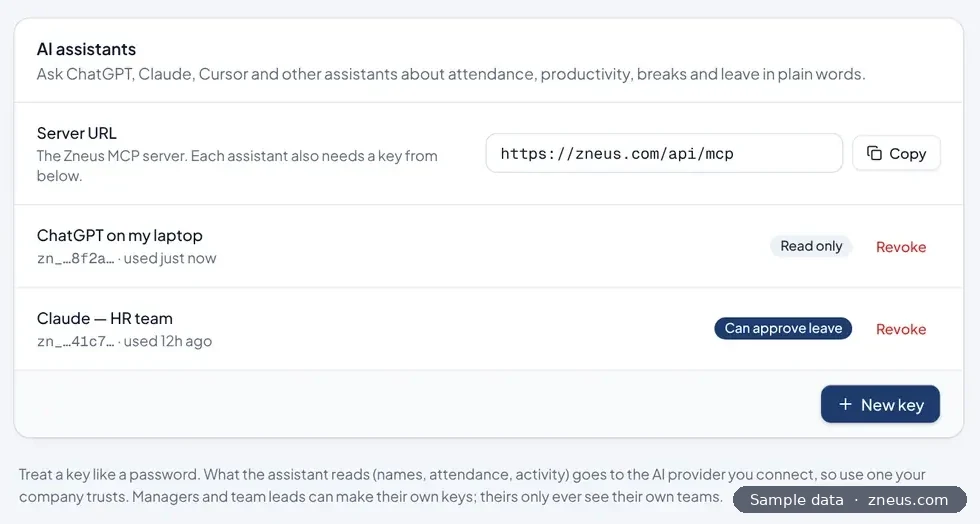
In the panel, open Settings and choose AI assistants. The server URL is shown at the top: https://zneus.com/api/mcp.
-
Make a key
Choose New key and give it a name, such as "ChatGPT on my laptop".
-
Choose what it can do
Leave approvals off for read-only access. Turn on "Can approve and reject leave" only if you want to approve leave by chatting.
-
Copy the key
Copy the key straight away. It is not shown again; if you lose it, revoke it and make a new one.
-
Add it to your assistant
Pick your assistant on the same screen (ChatGPT, Claude, Claude Code, Cursor / VS Code or Other) and follow the steps shown there to add the server and key.
Good to know
- The assistant sees exactly what that login sees in the panel, nothing more. A manager's key only sees their own teams.
- What the assistant reads goes to the AI provider you connect, so use one your company trusts. Revoking a key cuts access straight away.
Questions about this
What can I ask?
Questions like "Who was absent yesterday?", "Show this week's productivity for the Support team" or "Which leave requests are pending?".
Related
Stuck on a step?
Tell us where. We help you set Zneus up on a call, in Hindi or English.