
Install the Zneus app on an employee's PC
Each employee needs the Zneus app on their Windows PC or Mac. It takes a few minutes per computer. Add the employee in the panel first, so they have a login to sign in with.
Steps
-
Add the employee in the panel
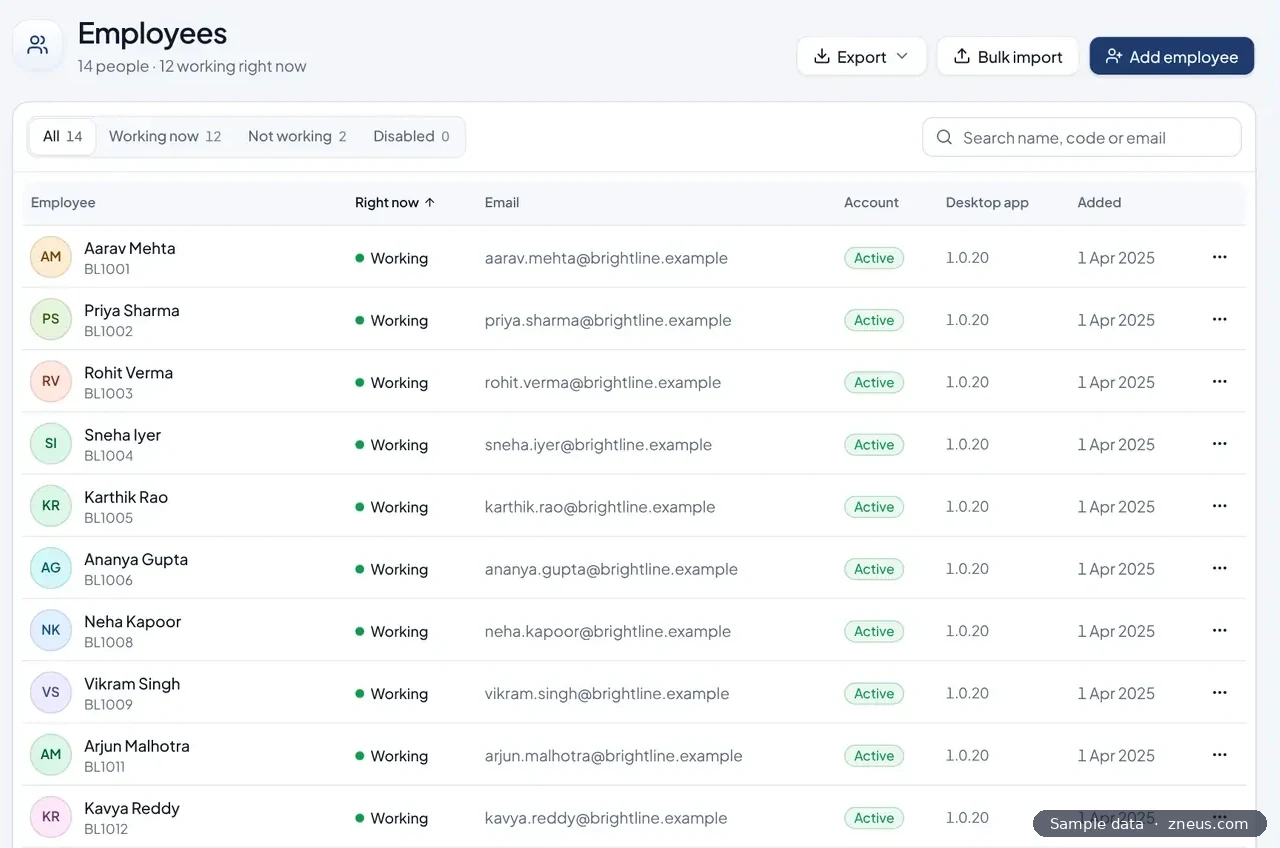
In Employees, choose Add employee. Note the work email and password, or tick the option to email them their login.
-
Download the app
On the employee's PC, open zneus.com/download and download the Windows or Mac app. On Windows you can also install it from the Microsoft Store by searching for Zneus.
-
Install it
On Windows, run the installer. On a Mac, open the .dmg, drag Zneus Employee into Applications and allow Screen Recording and Accessibility when asked. It runs on Windows 10 and 11 and on macOS 12 or later.
-
Sign in
Open Zneus and sign in with the work email and the password. Then choose Sign In.
-
Check the panel
Back in the admin panel, the employee shows as working on the dashboard and in Employees once the app is signed in.
Good to know
- The app stays in the system tray while it runs. Employees can see it, and use it to apply for leave, start breaks and tick off tasks.
- Zneus does not record keystrokes. It notes whether there was keyboard or mouse input in each minute.
Questions about this
Does the employee app work on Mac or Linux?
It runs on Mac: macOS 12 Monterey or later, one app for Intel and Apple Silicon. There is no Linux app. The admin panel works in any browser, and there is an Android admin app.
The employee forgot their password. What now?
Open the employee in Employees, edit them and set a new password. Their old password stops working.
Related
Stuck on a step?
Tell us where. We help you set Zneus up on a call, in Hindi or English.