
Add employees, one by one or from a CSV file
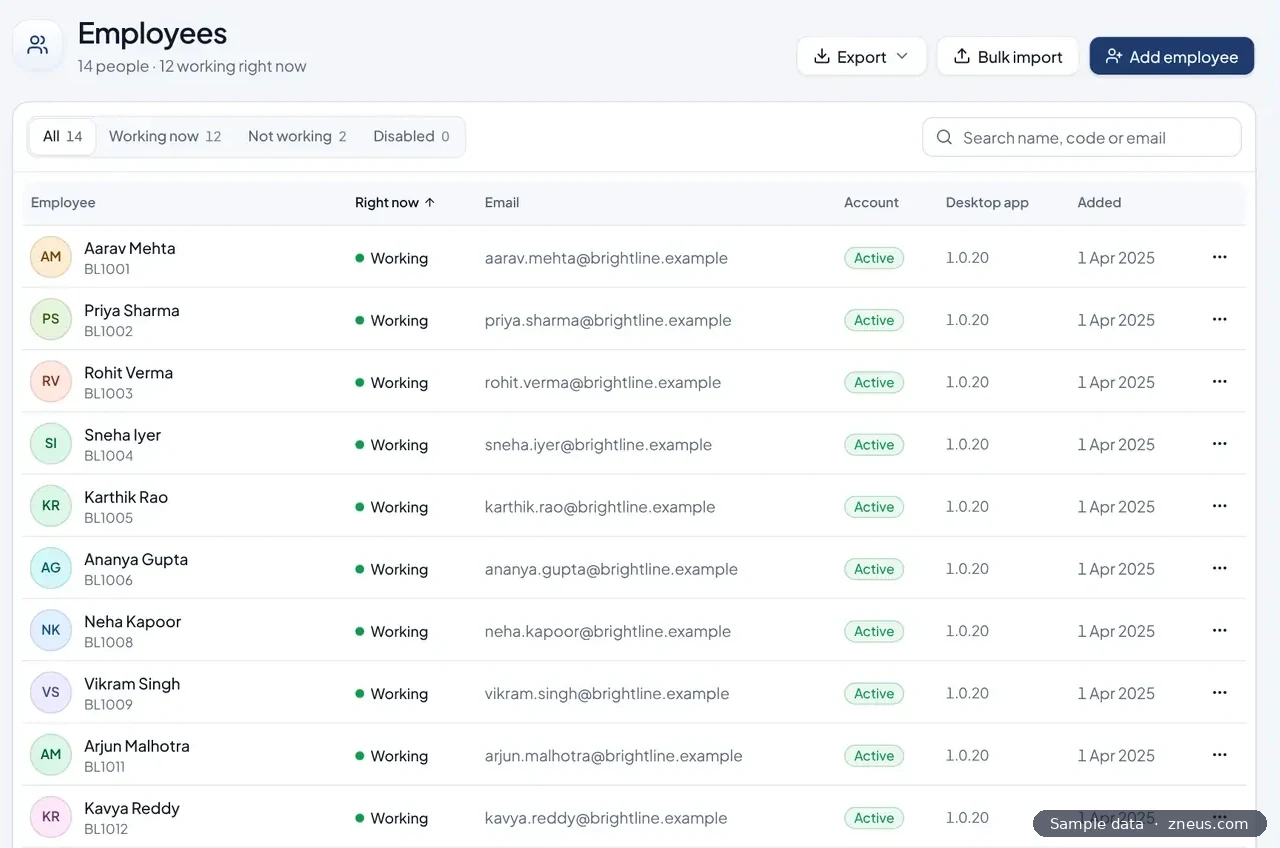
Every person you track needs an employee record in Zneus. For a few people, add them by hand. For a whole team, fill in the CSV template and import it.
Steps
-
Open Employees
In the panel, open Employees from the menu.
-
Add one person
Choose Add employee. Fill in Employee code, Full name, Work email and a password. Leave Account active switched on.
-
Send their login
Tick "Email them a welcome message with their login details" if you want Zneus to send it, then choose Add employee.
-
Or import many at once
Choose Bulk import, download the CSV template and fill one row per employee. Upload it. You get a preview and can fix mistakes before anyone is created.
-
Keep the logins
After an import, choose Download logins CSV. Passwords are not shown again after you leave that screen.
Good to know
- Switching Account active off stops that person from signing in. Their past data stays.
- Salary details are added per employee from their profile, and are used by Payroll.
Questions about this
Can I change an employee code later?
Yes. Edit the employee and change the code. Their past data stays with them.
Is there a limit on how many employees I can add?
You pay per employee, so add as many as your plan covers. Larger teams get a lower rate per person; see the pricing page.
Related
Stuck on a step?
Tell us where. We help you set Zneus up on a call, in Hindi or English.